

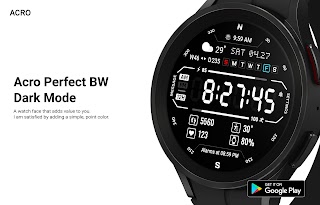
ACRO Perfect BW Watchface
Watch Face with Wear os 3.0 and later support.
Updated:
Sep 29, 2025
Released:
May 9, 2023
Content rating
Everyone
Android required
Varies with device
Installs:
1K+
Pricing
Paid
Interaction / notes
—
Category
app / personalization
Package name
Detailed description
*How to install
Payment and installation of the Play Store app on the smartphone (touch the right arrow and install the smart watch)
> Need to check the connection between watch device and mobile phone
*Resolved to be installed display
Copy the play store address of the watch face (click the three dots next to the magnifying glass in the upper right corner of the play store > share)
Go to Samsung Internet and click 'Install on another device' > select watch 4
- In order to use all functions, consent to use the sensor is required.
- Some features may not be available on all watches.
- If the Play Store app is shown as incompatible, please install it using a web web browser on your PC/laptop in addition to the app on your phone.
this watchface supports wear os devices.
Mobile phone battery complication app
After installing the additional app from the link below to your watch and smartphone, set the complication.
Search for the 'Phone Battery Complication' app and install it. https://play.google.com/store/apps/details?id=com.weartools.phonebattcomp
All credits go to original app creator.
amoledwatchfaces - https://play.google.com/store/apps/dev?id=5591589606735981545
Find installed watchfaces
1. Press and hold the watch face > 2. Click the Decorate button > 3. Click ‘Add watch face’ on the last right > Confirm the purchased watch face
How to set up Customize
1. Press and hold the watch face > 2. Click the Decorate button > 3. Tap each complication area to set the corresponding information > 4. Click OK
Discover the new watch face in the ACRO store
https://play.google.com/store/apps/dev?id=7728319687716467388
For inquiries about the app, please contact us at the email below.
Mail : [email protected]
Payment and installation of the Play Store app on the smartphone (touch the right arrow and install the smart watch)
> Need to check the connection between watch device and mobile phone
*Resolved to be installed display
Copy the play store address of the watch face (click the three dots next to the magnifying glass in the upper right corner of the play store > share)
Go to Samsung Internet and click 'Install on another device' > select watch 4
- In order to use all functions, consent to use the sensor is required.
- Some features may not be available on all watches.
- If the Play Store app is shown as incompatible, please install it using a web web browser on your PC/laptop in addition to the app on your phone.
this watchface supports wear os devices.
Mobile phone battery complication app
After installing the additional app from the link below to your watch and smartphone, set the complication.
Search for the 'Phone Battery Complication' app and install it. https://play.google.com/store/apps/details?id=com.weartools.phonebattcomp
All credits go to original app creator.
amoledwatchfaces - https://play.google.com/store/apps/dev?id=5591589606735981545
Find installed watchfaces
1. Press and hold the watch face > 2. Click the Decorate button > 3. Click ‘Add watch face’ on the last right > Confirm the purchased watch face
How to set up Customize
1. Press and hold the watch face > 2. Click the Decorate button > 3. Tap each complication area to set the corresponding information > 4. Click OK
Discover the new watch face in the ACRO store
https://play.google.com/store/apps/dev?id=7728319687716467388
For inquiries about the app, please contact us at the email below.
Mail : [email protected]
About ACRO Perfect BW Watchface
Developer
Website
—
Privacy Policy
Contact
Address
명지국제3로 97 명지삼성그린코아더베스트, 104동 2803호 강서구, 부산광역시 46726 South Korea
Permissions breakdown
Grouped as shown on Google Play. Informational only.
No permission data available.
Screenshots
Preview images associated with this app listing.




Versions
For extended version history and archived records, see
the app record on mi9.com
.
Click “Versions” to load.
Comments
Click “Comments” to load.
Similar apps
Apps with similar tags/category.

JW274 jwstudio
JWstudio · Personalization

Modern Contrast Watch Face
Wooden Nickel · Personalization

SH077 Watch Face, WearOS watch
Shards Watch Face · Personalization

Mark Two Watch Face
SkyMax Watch Faces · Personalization

Digital Dashboard
GW Watchfaces · Personalization

ZKin Watch Black White Message
ZKin · Personalization
More from developer
Other apps from the same developer.

ACRO Multi W Digital Watchface
ACROWatch · Personalization

ACRO Energy Fit2 Watchface
ACROWatch · Personalization

ACRO Sports Digi YD4 Watch
ACROWatch · Personalization

ACRO Sports Digi YD3 Watchface
ACROWatch · Personalization

ACRO Sports Digi YD2 Watchface
ACROWatch · Personalization

ACRO Simple Digi YD Watchface
ACROWatch · Personalization